
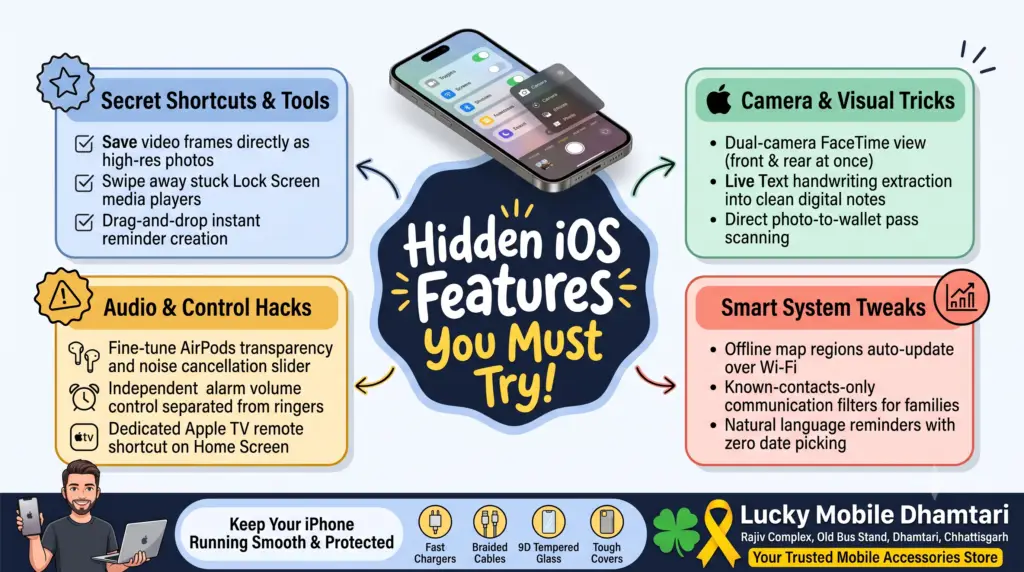
11 Hidden iOS 27 Features You Probably Haven’t Found Yet
Whenever Apple pushes a major software update, the big stage presentations spend all their time talking about flashy redesigns, Siri AI upgrades, and system-level visuals.
What they usually rush past are the tiny, practical quality-of-life adjustments buried three menus deep in Settings. These are the small tweaks you end up using ten times a day—the features that actually make using your iPhone faster, cleaner, and less annoying.
If your iPhone is already running iOS 27, you do not need to wait around for new apps to take advantage of it. Here are eleven of the best hidden features, secret toggles, and buried shortcuts worth turning on right now.
Quick Overview: Hidden iOS 27 Gems at a Glance
Hidden Feature | Where to Find It | What It Actually Does ?
Save Video Frame as Photo | Photos app > Three-dot menu on any video | Grabs a full-resolution still picture without needing a messy screenshot.
Dual-Camera FaceTime | FaceTime call > Effects menu | Broadcasts both your face and what is in front of you at the same time
Custom Apple Wallet Passes | Wallet app > (+) > Create a Pass | Lets you digitize non-supported gym cards, library passes, and tickets.
AirPods Audio EQ & Blend | Settings > Bluetooth > AirPods > Audio Tuner | Mixes active noise cancellation and transparency to your exact preference.
Direct Remote Home Icon | Settings > Control Center or App Library | Drops a dedicated Apple TV remote icon right onto your Home Screen.
Per-App Screen Time Limits | Settings > Screen Time > Communication Limits | Blocks unfamiliar phone numbers in Messages and FaceTime for kids.
Full-Screen App Drawer for TV | Apple TV app > Left sidebar pull | Lets you switch streaming apps without jumping back to the home view.
Granular Alarm Volume Slider | Clock app > Alarms > Sound & Haptics | Lets you adjust alarm volume completely independently from ringtones.
Offline Map Area Auto-Refresh | Maps > Offline Maps > Settings | Automatically downloads map tiles over Wi-Fi when you travel frequently.
Natural Language Reminders | Reminders app > Quick Add | Type casual sentences like “Call plumber tomorrow 4pm” and it auto-schedules.
Swipe-Away Media Player | Lock Screen media widget > Swipe left | Clears paused Spotify or podcast players immediately from your lock screen.
The 11 Best Hidden Features in iOS 27
1. Save Any Video Frame as a Full-Resolution Photo
For years, if you captured a great split-second moment in a video clip, your only choice was to pause, hide the playback controls, take a screenshot, and crop the edges. That screenshot always looked softer than a real camera photo.
In iOS 27, open any video inside Apple Photos, scrub to the exact millisecond you want, tap the three-dot menu icon in the upper right corner, and select “Save Video Frame as Photo.” iOS extracts that individual frame in original sensor resolution directly into your library.
2. Dual-Camera Streaming in FaceTime
Following the introduction of dual-sensor recording on newer camera systems, FaceTime now lets you use both the selfie camera and the rear lens simultaneously during one-on-one calls.
When you want to show someone an apartment you are touring, a product in a store, or a road route without flipping back and forth between faces, tap the effects drawer and toggle on Dual View. It splits your outgoing feed so the caller sees both you and what you are looking at.
3. Turn Any Physical Barcode or Card into an Apple Wallet Pass
Apple Wallet used to rely strictly on official airline apps or ticketing companies providing an “Add to Apple Wallet” link. If your local gym, parking garage, or grocery store used a basic plastic barcode card, you were stuck carrying it in your pocket.
In iOS 27, open Wallet, tap the plus (+) icon, and tap “Create a Pass.” Point your camera at any physical barcode, QR code, or membership number. You can pick a custom card color, name it, and save it directly alongside your debit cards.
4. Custom Transparency and ANC Slider for AirPods
If you wear AirPods Pro or newer AirPods models, you used to have to pick between full Active Noise Cancellation or full Transparency mode.
iOS 27 introduces a fine-tuning slider inside the AirPods settings panel. You can dial in the exact balance you want—for instance, 70 percent noise reduction to drown out traffic while still letting 30 percent ambient voice audio through so you do not miss someone calling your name in an office or shop.
5. Independent Alarm Volume Control
One of the most persistent complaints about iPhones has been the unified volume slider: turn your ringer down so work calls don’t disturb your evening, and your morning alarm might be too quiet to wake you up.
Under the Clock app in iOS 27, tap into your alarm sound settings to find a separate, independent alarm volume control. You can keep your incoming phone calls discreet while ensuring your 6:00 AM wake-up alarm rings at maximum volume.
6. Swipe Away Stuck Lock Screen Media Widgets
Ever pause a podcast or music track, put your phone away, and pull it out two hours later only to find the massive album artwork player still taking up half of your Lock Screen?
In iOS 27, you can simply swipe left across the media player widget on your Lock Screen to dismiss it immediately, restoring your clean wallpaper view.
7. Smart Text Extraction for Physical Handwritten Notes
Live Text in iOS 27 gets significantly better at understanding rough, casual handwriting. Point your camera at a scribbled ledger sheet, grocery list, or textbook notes, and tapping the Live Text icon now gives you an option to “Copy Clean Text.” The system straightens the text, fixes basic spelling shortcuts, and pastes it into Notes without formatting mess.
8. Auto-Updating Offline Map Regions
If you use Apple Maps offline while traveling across rural highways or areas with weak signal, iOS 27 can keep those saved maps refreshed automatically. In the Offline Maps menu, toggle on “Auto-Update Over Wi-Fi.” The moment your phone connects to your home or shop broadband overnight, it silently updates road closures and newly added businesses in your saved territory.
9. Granular App Communication Filters for Families
Screen Time has been overhauled for better privacy and child safety. Instead of completely locking an entire messaging app, parents can now toggle on “Known Contacts Only.” This lets younger family members chat with verified friends and family while automatically routing messages from unknown numbers into an unnotified review folder.
10. Dedicated Apple TV Remote Icon on Your Home Screen
Instead of always pulling down the Control Center shade to find the tiny remote icon, iOS 27 lets you drag the TV Remote tool right onto your home screen grid as an independent app icon or interactive widget. One tap opens your trackpad control immediately.
11. Natural Language Reminders That Don’t Require Manual Dates
When opening the Reminders app, you no longer need to click the calendar icon, select a day, scroll to a minute, and confirm. Simply type in natural phrasing like “Remind me to check shop inventory Friday at 6pm,” and iOS 27 automatically parses the text, highlights the date and time, and creates the alert schedule with zero extra taps.
Suggest Products
1. Magnetic / MagSafe Wireless Power Banks
2. Multi-Device GaN Fast Wall Chargers (65W – 100W)
3. 3-in-1 Foldable Wireless Charging Stations
4. Magnetic Phone Grip & Kickstand / Card Wallets
5. Auto-Alignment Tempered Glass Screen Protectors
Lucky Mobile Dhamtari – iPhone Setup Tip
Enabling advanced features like on-device frame processing, dual-camera FaceTime streaming, and continuous background indexing consumes extra system energy. If your iPhone battery health has slipped below 80 percent, running multiple background tasks will cause noticeable battery drain before the day is over.
If your iPhone needs a battery diagnostic check, a genuine high-speed 20W to 30W charger, or an edge-to-edge screen protector that keeps your front camera crystal clear for dual FaceTime, stop by our shop in Dhamtari.
Lucky Mobile
Rajiv Complex, Old Bus Stand, Dhamtari, Chhattisgarh
Lucky Mobile Dhamtari FAQ
Where is Lucky Mobile located in Dhamtari?
Lucky Mobile is located at Rajiv Complex, near the Old Bus Stand in Dhamtari, Chhattisgarh.
Can you help me configure hidden settings on my iPhone?
Yes. If you are having trouble setting up offline maps, Apple Wallet passes, or organizing your home screen widgets after an update, our team at the counter is always happy to assist you in person.
Why is my iPhone getting warm after turning on new iOS 27 features?
When you activate new system features and install a major software update, your phone runs heavy background indexing across your photo library and files. This warmth is completely normal for the first 24 to 48 hours and settles down once indexing finishes.
Do you have fast-charging adapters compatible with iPhones?
Yes. We carry certified USB-C Power Delivery wall adapters and durable braided Type-C to Type-C or Type-C to Lightning cables that charge your iPhone safely and rapidly.
Does Lucky Mobile stock tempered glass that fits edge-to-edge on modern iPhones?
Yes. We have precision-cut 9D and 11D tempered glass protectors that cover the entire screen without interfering with the Dynamic Island, sensors, or speaker grills.
Suggested Blog Links
iOS 27 Launch: Expected Features, Supported Devices, and Performance Verdict
USB-C Charger vs USB-C Cable: Why They Are Not the Same
Original vs Duplicate Mobile Accessories: How to Tell the Difference
Why Your Next Phone May Need More RAM Because of AI Complete
Affiliate Disclosure
This post may include affiliate links. If you make a purchase through these links, Lucky Mobile may earn a modest commission at no additional cost to you. Always verify product compatibility, current pricing, and local availability before picking up new gear.